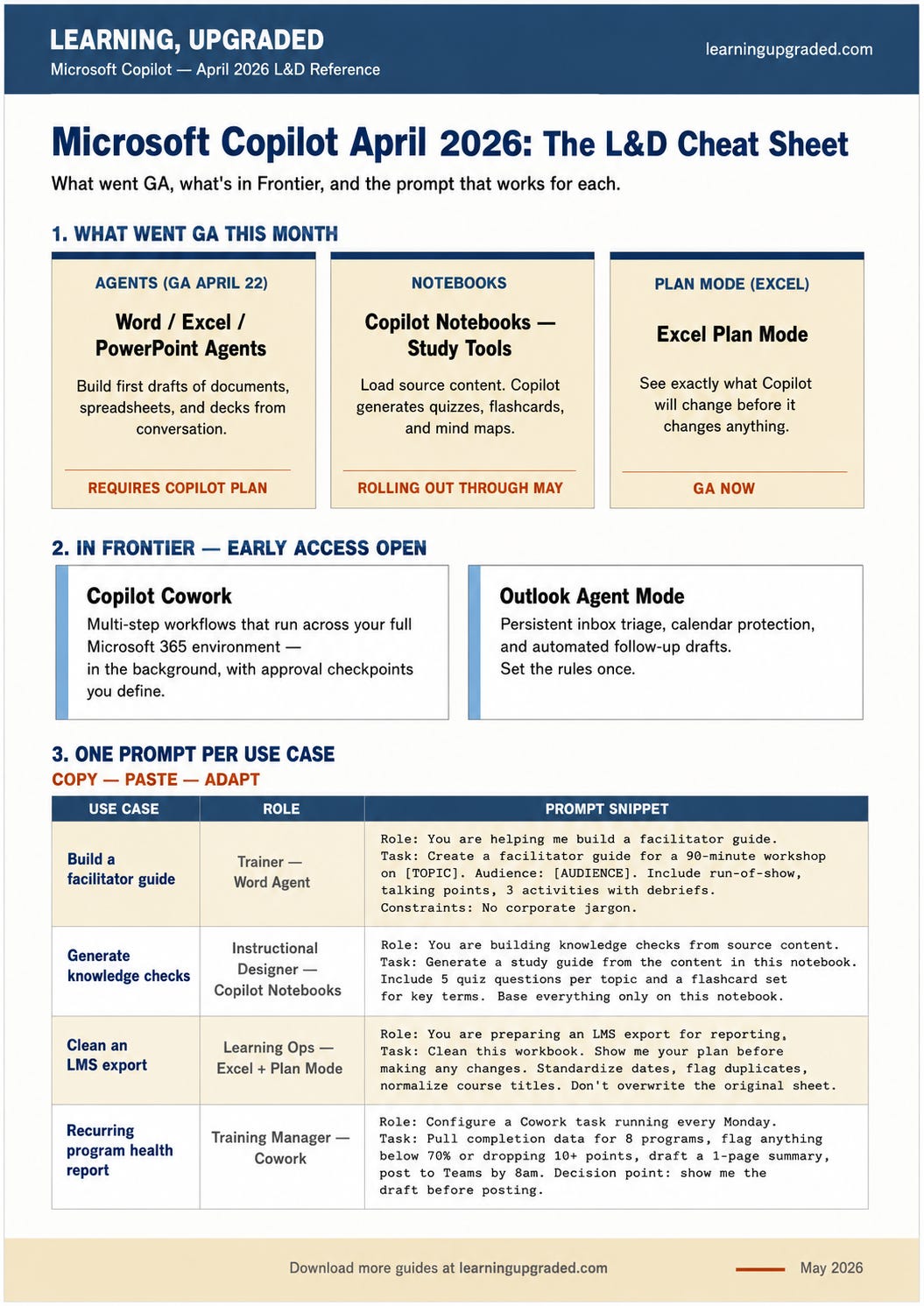
Microsoft Copilot April 2026: The L&D Cheat Sheet
What went GA, what's in Frontier, and the prompt that works for each.

☕ 15-minute read
In April, Microsoft shipped more Copilot updates than usual. Word Agent, Excel Agent, and PowerPoint Agent went generally available. Copilot Notebooks got study tools, flashcards, and mind maps built from your own source content. Claude Opus 4.7 landed in Copilot’s model selector. Meeting recaps became narrated video highlight reels. And the “Hey Copilot” wake word moved voice interaction from a demo into a daily habit.
For L&D teams, the story isn’t novelty. It’s compression. The workflows that consume the most production time (blank-page document drafts, LMS data cleanup, slide structure, SME interview synthesis, knowledge-check creation) all got meaningfully faster. Not because any single feature is a breakthrough, but because enough pieces went generally available at the same time for the combination to be real and usable now.
Each major release below comes with two ready-to-paste prompts, written in the format Copilot responds to best: a clear role, an explicit task, a defined output format, and specific constraints. One prompt per role pair, each built for a different job in L&D. Copy them, swap in your own context, and run them.
📋 TL;DR
Three agents went GA on April 22. Word Agent, Excel Agent, and PowerPoint Agent can build first drafts of documents, spreadsheets, and decks from a single conversation. Requires a Microsoft 365 Copilot plan, Premium, or Personal/Family.
Claude Opus 4.7 is now in Copilot’s model selector. Available in Copilot Cowork and Copilot Studio starting April 16, giving teams a second model option alongside OpenAI for complex, long-form work.
Copilot Notebooks added study tools, flashcards, and mind maps. Load training content into a notebook, and Copilot generates quizzes, flashcards, and structured summaries from it. The most L&D-native feature Microsoft shipped this month.
Excel got Plan mode. Copilot shows its intended edits before making any changes to the workbook. Python support was announced in April and is rolling out in May.
Audio overviews landed in Word and Teams. Word documents get a spoken summary from the Summary tab. Teams meeting recaps now include a narrated video highlight reel alongside the written summary.
Interpreter Agent added consecutive mode. Teams’ interpretation now supports turn-based back-and-forth conversations, not just simultaneous broadcast. Matters for multilingual L&D work.
“Hey Copilot” wake word shipped on Windows. Hands-free voice interaction with Copilot is available in the Microsoft 365 Copilot app on Windows desktop.
🤖 Three Agents Go GA: Word, Excel, and PowerPoint
Generally available April 22, 2026. Available in Microsoft 365 Copilot, Microsoft 365 Premium ($129.99/year), and Personal/Family plans. Requires a plan that includes Copilot. Source: microsoft.com/en-us/microsoft-365/blog/2026/04/22.
Word Agent, Excel Agent, and PowerPoint Agent do something different from what Copilot has done until now. Instead of helping inside a file that’s already open, they build the first version of the file for you. Describe the deliverable in conversation: audience, structure, length, constraints. The agent creates a complete first draft from scratch. We then edit, redirect, and iterate from that starting point rather than a blank page.
That shift matters more than it sounds. Blank-page time is where most L&D production hours go. Not because the work is conceptually hard, but because translating a clear mental model into a formatted document, a structured spreadsheet, or a sequenced deck takes longer than it should. These agents compress that step.
The agents live in Copilot Chat. Access them from the Microsoft 365 Copilot app or from inside the apps themselves. The output is a first draft, not a finished product. Review accuracy and structure before it goes to anyone. And the prompts matter: the more specific the audience, purpose, format, and constraints are up front, the less cleanup the first draft needs.
For L&D folks: Use Word Agent for facilitator guides, onboarding briefs, and stakeholder documents. Use Excel Agent for training trackers, completion dashboards, and evaluation rollups. Use PowerPoint Agent for workshop decks, kickoff slides, and program overviews. These are the deliverables that drain the most production time in L&D, and they’re exactly what the agents are built for.
For a Trainer: Build a facilitator guide from a workshop outline
Scenario: A 90-minute virtual workshop on feedback needs a full facilitator guide before the pilot cohort next week.
Role: You are helping me build a facilitator guide for a live virtual workshop.

Task: Create a complete facilitator guide for a 90-minute virtual workshop called "Giving Better Feedback to New Managers."

Audience:
- First-line managers at a technology company
- 20 participants, mixed experience levels

What I need:
- Title page and workshop overview
- Run-of-show in 10-15 minute blocks with facilitator talking points for each section
- 3 practice activities with debrief questions after each
- A short participant handout section at the end

Output format:
- Clear headings for each section
- Tables for the run-of-show and activity instructions
- Practical, direct tone throughout
- Any assumptions flagged with [ASSUMPTION]

Constraints:
- No generic corporate language
- No invented company policies or data
- Keep the total length to 5-7 pages
For Learning Operations: Build a program tracking workbook from scratch
Scenario: A training ops manager needs a tracker for 12 active programs that can be updated weekly without rebuilding.
Role: You are helping me create an Excel workbook for L&D operations.

Task: Build a training operations tracker for 12 active programs.

For each program, include:
- Program name, owner, audience, launch date
- Completion target and current completion rate
- Evaluation score, risk status, next milestone

Also create:
- A summary dashboard tab with a completion chart by program
- A color-coded status indicator (on track, at risk, off track)
- A filterable table across all programs

Output format:
- One summary tab and one detailed data tab
- Use formulas for completion rate and status logic
- Structure it so it's updatable weekly without rebuilding

Constraints:
- Don't invent completion data — use placeholder values labeled [ENTER DATA]
- Standardize all category names so filters work cleanly
- Label every formula with a comment explaining what it calculates
🧠 Claude Opus 4.7 in Copilot: A Second Model for Complex Work
Available in Copilot Cowork (Frontier) and Copilot Studio starting April 16, 2026. Rolling out to additional Copilot surfaces. Source: techcommunity.microsoft.com.
Microsoft added Claude Opus 4.7 to the model selector inside Copilot on April 16. Inside Copilot Cowork and Copilot Studio, we can now choose between OpenAI’s models and Anthropic’s most capable model for any given task.
What changes in practice: model choice affects how a first draft holds up on complex, long-form, multi-part work. Opus 4.7 tends to hold more context across long inputs, follow multi-part instructions more literally, and produce more structured output on the first pass for work that requires sustained reasoning across a lot of source material. It’s not better at every task. For short drafts or quick rewrites, the differences are minor. The gap shows up in work like synthesizing 40 pages of evaluation comments, auditing a facilitator guide against a rubric across 30 sections, or maintaining a coherent structure throughout a long onboarding document.
Microsoft framed this as part of a broader multi-model direction rather than a one-off. More models are coming to the selector. This is great, so you can see which model yields the best results.
For L&D folks: Switch to Opus 4.7 in Copilot Cowork when the task involves long source material, multi-step reasoning across many constraints, or a first draft that needs to hold its structure over many pages. For short tasks or iterative editing, the default model is fine.
For an Instructional Designer: Synthesize SME interview notes into a course outline
Scenario: Notes from three subject-matter experts on a new product launch process need to be converted into a structured course outline before design begins.
Role: You are helping me turn raw SME interview notes into a structured course outline.

Task: Analyze the attached interview notes from three subject matter experts on our new product launch process and produce a course outline.

What I need:
- The 5-7 core learning topics across all three interviews
- For each topic: a learning objective, the key concepts covered, and 2-3 activities that would let a learner practice the skill
- Any gaps where the SME interviews disagreed or left something unclear

Output format:
- A structured outline with numbered topics
- Each topic: objective, key concepts (bullet list), suggested activities, and flagged gaps
- A one-paragraph summary at the end of what the course does and doesn't cover based on the source material

Constraints:
- Base the outline only on what the SMEs actually said — don't add concepts not in the notes
- Label inferred connections between interviews as [INFERRED]
- Keep objectives in behavioral format: "Learners will be able to [action verb] [what] [under what conditions]"
For a Training Manager: Audit a program against a quality rubric across 30 sessions
Scenario: 30 training session evaluation summaries need to be reviewed against a four-criterion quality rubric before the next cohort launches.
Role: You are reviewing 30 training session evaluation summaries against our program quality rubric.

Task: Identify which sessions meet our standard and which need attention before the next cohort.

Our quality rubric has four criteria:
1. Facilitator engagement score (target: 4.2+ out of 5)
2. Content clarity rating (target: 4.0+ out of 5)
3. Learning objective coverage (target: all objectives addressed)
4. Participant practice time (target: minimum 30% of session time)

What I need:
- A session-by-session review against all four criteria
- A summary of the top 3 systemic issues across all sessions
- A prioritized list of sessions to address before the next cohort, with the specific reason for each

Output format:
- A table: Session name | Engagement | Clarity | Objectives | Practice time | Pass/Flag
- A separate summary section with the 3 systemic issues and evidence from the data
- A prioritized action list with one recommended fix per flagged session

Constraints:
- Flag, don't score, any session where data is missing
- Don't recommend removing content — recommend restructuring or resequencing only
- Keep the action list to 5 sessions maximum so the team can act on it
📓 Copilot Notebooks: Study Tools, Flashcards, and Mind Maps
Rolling out GA in Frontier from early April through early May 2026. Available in Microsoft 365 Copilot plans. Source: techcommunity.microsoft.com.
Copilot Notebooks is where Microsoft is quietly building something that looks like instructional-design automation within a productivity tool. Here’s what it does now: load source content into a notebook (training materials, product documentation, onboarding guides, SME interview transcripts, and SharePoint content), and Copilot automatically generates a study guide from it. That means quizzes, flashcards, topic summaries, and deep-dive pages built directly from your source material, not from generic knowledge.
The mind map feature gives an interactive visual of the key topics and relationships across a notebook’s full content. Explore nodes, open summaries for specific areas, and ask Copilot to go deeper on any part of the map. It’s a faster way to see what the content covers before deciding what to build from it.
The April update also added: generating Word documents from notebook content, generating PowerPoint decks from notebooks, sharing notebooks with Microsoft 365 Groups, and referencing OneNote and SharePoint content directly inside a notebook.
What this means for us today: take a repository of source material (a product wiki, a skills framework, a course transcript), load it into a notebook, and have Copilot generate the scaffolding for a knowledge check or study guide in minutes. The output needs review. The raw material is there.
For L&D folks: Copilot Notebooks is the fastest path from raw source content to a reviewable knowledge-check draft we’ve ever had inside a Microsoft tool. Use it before opening Articulate or PowerPoint.
For an Instructional Designer: Generate knowledge checks from a product wiki
Scenario: 47 pages of product documentation need to become a study guide and quiz set for a new customer success onboarding.
Role: You are an instructional designer building knowledge checks from product documentation.

Task: I've loaded our product documentation wiki (47 pages) into this notebook. Generate a study guide for our customer success team.

What I need:
- A topic summary (one paragraph) for each of the 5 main product areas in the documentation
- 5 quiz questions per topic, 25 total — mix of multiple choice and true/false
- For each question: the correct answer, a one-sentence explanation, and the page reference from the source documentation
- A flashcard set covering the 30 most important terms in the documentation

Output format:
- Section 1: Topic summaries
- Section 2: Quiz questions organized by topic
- Section 3: Flashcard set in Q&A format

Constraints:
- Base every question only on what's in this notebook — don't draw on outside knowledge
- Mark any question where the source material is ambiguous with [REVIEW]
- Keep questions at a practical application level, not memorization: "What would you do if..." not "What does the documentation say..."
For a Trainer: Turn a completed course transcript into a facilitator review guide
Scenario: The transcript from a 4-hour recorded onboarding course needs to become a prep guide for trainers delivering the live version.
Role: You are a trainer building a prep guide from a recorded course transcript.

Task: I've loaded the transcript from our 4-hour onboarding course into this notebook. Build a facilitator prep guide for trainers delivering the live version.

What I need:
- A mind map overview of the course's main topics and how they connect
- A section-by-section breakdown with: core message, common participant questions, and one activity suggestion per section
- A "watch for this" list of concepts where the course content is complex or ambiguous enough to cause confusion

Output format:
- Section 1: Mind map overview in text format showing topic relationships
- Section 2: Section-by-section breakdown in a table
- Section 3: "Watch for this" list with the concept and why it tends to cause confusion

Constraints:
- Base the "watch for this" items on complexity or ambiguity in the transcript — don't invent difficulty
- Keep section descriptions to 3 sentences maximum
- Flag any section where the transcript was unclear or cut off with [TRANSCRIPT GAP]
📊 Excel Gets Plan Mode
Plan mode is generally available inwas announced in April 2026, rolling out in April 2026. Python support for Copilot in Excel announced April 2026, rolling out May 2026. Source: techcommunity.microsoft.com/blog/excelblog/whats-new-in-excel-april-2026.
Plan mode does one simple thing: before Copilot makes any changes to a workbook, it shows exactly what it intends to do. We see which cells it’ll touch, what formulas it’ll create, and what data it’ll reorganize. We approve or redirect before anything happens.
For casual experimentation, this doesn’t matter much. For L&D operations work (completion trackers, budget models, evaluation rollups, anything that feeds a leadership report), it matters a great deal. A wrong move in a source-of-truth spreadsheet creates cleanup work that costs more than the automation saved. Plan mode closes that gap.
To use it: select Plan from the menu above the Copilot prompt box in Excel, type the request, review the plan, and confirm. If the plan looks wrong, redirect before it runs.
Python support for Copilot in Excel was announced in April and is rolling out in May. When it lands, Copilot will be able to run Python-powered analysis inside the workbook without any coding: advanced data transformation, visualization, and multi-step analysis that previously required a separate tool or a data analyst.
For L&D folks: Any Excel workbook that feeds a leadership dashboard, a board report, or a compliance audit deserves Plan mode before Copilot touches it. Ask it to show the plan first, review it, then confirm.
For Learning Operations: Clean and standardize an LMS completion export
Scenario: A raw LMS export has formatting inconsistencies and duplicate records and needs to be cleaned before it goes into the monthly leadership report.
Role: You are helping me prepare an LMS completion export for our monthly leadership report.

Task: Clean up a raw completion export from our LMS.

Show me your plan before making any changes.

What I need done:
- Standardize all date formats to MM/DD/YYYY
- Find and flag duplicate learner records (same name and employee ID)
- Normalize course title variations to a canonical list I'll provide
- Flag blank values in the required fields: learner name, employee ID, course title, completion date, score
- Create a new sheet called Cleaned Data with the corrected records
- Create a second sheet called Monthly Summary with completion counts by course and month

Constraints:
- Don't delete or overwrite the original data sheet
- Don't guess at missing values — flag them with [MISSING]
- Use consistent column header names across both output sheets
- If two course title variations might be the same course, flag them for my review rather than merging
For a Training Manager: Analyze evaluation scores across a quarter
Scenario: Evaluation data from 8 programs across Q1 2026 needs to be summarized for a VP review by end of week.
Role: You are helping me analyze training evaluation scores for a quarterly review.

Task: Summarize Q1 2026 evaluation data across 8 programs for a VP-level review.

Show me your plan before making any changes.

What I need:
- Average scores by program for: facilitator rating, content rating, overall satisfaction
- A trend showing whether scores improved, declined, or stayed flat month over month
- The 3 programs with the largest score drop from Q4 2025 to Q1 2026
- A flag for any program where fewer than 10 evaluations were submitted

Output format:
- A summary table: program name, average scores across all three measures, Q4-to-Q1 trend, sample size
- A separate section for the 3 programs needing attention, their score drop, and a one-sentence hypothesis for why based only on the data available
- A chart showing overall satisfaction trends across all 8 programs by month

Constraints:
- Don't average across programs with different sample sizes without flagging it
- Label the chart clearly so a VP can read it without the data table
- If a program is missing data for any month, note it in the trend rather than dropping it from the chart
🎤 Audio Overviews and Narrated Meeting Recaps
Audio Overview in Word: available April 2026. Narrated Video Recap in Teams: available April 2026 for recorded meetings 10 minutes or longer. Audio recap multilingual support expanded in April 2026. Source: supersimple365.com.
Two distinct features shipped in April, and they’re worth understanding separately.
Audio Overview in Word adds a headphones icon to the AI Summary area at the top of any document. Click it, and Copilot reads a spoken narrative summary of the document. Useful for reviewing a long needs assessment on the way to a meeting, catching up on a course design brief, or absorbing a stakeholder document before a call. Works on any Word document with Copilot enabled.
Narrated Video Recap in Teams changes what happens after asking Copilot to summarize a recorded meeting. Instead of a text-only summary, we now get a narrated highlight reel: key takeaways combined with short clips from relevant moments in the recording. Available for any meeting that was recorded and ran for at least 10 minutes, through Copilot Chat or inside Microsoft Clipchamp.
For L&D teams, the narrated recap changes the SME interview workflow. Record the interview, get a narrated summary with clips, and use that as the basis for the content brief, rather than rewatching the full recording or transcribing manually. The clip’s surface context is what we see before we quote something or build a scenario around it.
Audio recap is now available in Chinese, French, German, Italian, Japanese, Portuguese, and Spanish, in addition to English. Relevant for L&D teams running multilingual programs.
For L&D folks: Use Audio Overview for async review of long documents before meetings. Use Narrated Video Recap to replace the re-watch step after SME interviews and leadership calls.
For an Instructional Designer: Extract a content brief from an SME interview recap
Scenario: A 60-minute recorded SME interview on escalation handling needs to be developed into a content brief before course design begins.
Role: You are an instructional designer using a Teams meeting recap to build a content brief.

Task: I have the narrated recap from a 60-minute SME interview about our escalation handling process. Build a content brief I can take into course design.

What I need:
- The 5-7 core concepts the SME covered, in the order they came up
- For each concept: what the SME said it was, why they said it matters, and any example or story they used
- The 3 most important things a learner must be able to do after this training, derived from the SME's own language
- Any cautions, edge cases, or "don't do this" guidance the SME mentioned
- A list of follow-up questions to bring back to the SME before finalizing the design

Output format:
- Section 1: Core concepts in sequence
- Section 2: Must-be-able-to statements in behavioral format
- Section 3: Cautions and edge cases
- Section 4: Follow-up questions

Constraints:
- Use the SME's words and phrases where possible — don't translate into generic L&D language
- If the recap clips are ambiguous about meaning, flag it rather than interpreting
- Keep follow-up questions specific enough that the SME can answer in one sentence
For a Training Manager: Prepare an async stakeholder briefing from a meeting recap
Scenario: A project kickoff meeting was recorded, but several leaders and partners couldn’t attend and need a concise brief on what was decided.
Role: You are a training manager preparing a follow-up briefing after a project kickoff meeting.

Task: I have the narrated recap from our manager onboarding redesign kickoff. Turn it into an async briefing for stakeholders who couldn't attend.

What I need:
- A one-paragraph meeting summary covering what was decided, not what was discussed
- The 3 key decisions made and who owns each one
- The 4 open questions that still need resolution, with a proposed owner and deadline
- A "what this means for you" section written separately for: HR business partners, hiring managers, and the L&D team

Output format:
- Decision summary first
- Open questions table: question, proposed owner, deadline
- Separate "what this means for you" paragraphs for each audience

Constraints:
- Write as if the reader didn't attend and has 3 minutes, not 10
- Don't include discussion that didn't result in a decision or action
- If a decision owner wasn't named in the meeting, flag it as [OWNER TBD] rather than assigning one
🌐 Interpreter Agent: Consecutive Mode for Multilingual Training
Consecutive interpretation mode released April 2026 in Microsoft Teams. Builds on existing simultaneous interpretation. Source: What’s New in Microsoft 365 Copilot, April 2026.
Teams Interpreter has had real-time simultaneous interpretation for a while. What April added is a second mode: consecutive interpretation, built for back-and-forth conversations rather than one-directional broadcasts.
The difference matters for L&D work. Simultaneous mode works when one person is presenting or explaining. Consecutive mode works when there’s genuine dialogue: an SME interview across language boundaries, a multilingual needs-assessment conversation, or a pilot debrief where participants respond to and build on each other’s points. In consecutive mode, interpretation begins after each speaker finishes, creating a turn-based flow that more closely mirrors how people talk in a two-language meeting.
If our team works across language boundaries for content development, evaluation, or stakeholder interviews, this is the feature that makes those conversations usable in a way that simultaneous mode never quite managed.
For L&D folks: Use consecutive mode for SME interviews, pilot cohort debriefs, and stakeholder conversations with two languages present. Use simultaneous mode for presentations and training sessions where one person speaks continuously.
For a Trainer: Facilitate a multilingual pilot cohort debrief
Scenario: A post-training debrief includes English- and Spanish-speaking participants using Teams Interpreter in consecutive mode and requires a facilitation guide built around interpretation pauses.
Role: You are helping me facilitate a multilingual training debrief with two-language interpretation.

Task: Build a facilitation guide for a 45-minute post-training debrief with English and Spanish speakers using Teams Interpreter in consecutive mode.

What I need:
- An opening script that explains to participants how consecutive interpretation will work
- A question-by-question facilitation guide with timing that includes an interpretation buffer after each speaker
- Debrief questions written in plain language that translates cleanly (no idioms)
- A closing and next steps script

Output format:
- Opening script in English with a Spanish translation
- Facilitation guide in table format: question, timing, interpretation buffer, facilitation note
- Closing script in English with Spanish translation

Constraints:
- Keep each question short enough to hold in memory before responding
- Include a facilitator note for when to pause and let the interpreter catch up
- Don't use idioms or culture-specific phrases in any question
For Learning Operations: Document a multilingual needs assessment conversation
Scenario: A needs assessment was held in English and Spanish using Teams Interpreter, and the transcript needs to be turned into an actionable summary.
Role: You are documenting a bilingual needs assessment conversation for the L&D team.

Task: I have a Teams meeting transcript from a needs assessment with HR partners in Mexico and the US. Extract the actionable content.

What I need:
- The 5 core training needs identified, in priority order
- Any differences in perspective between the Mexico-based and US-based participants
- Quotes from participants that best represent each identified need, in whatever language they were spoken, with a one-sentence translation if needed
- Recommended next steps for the L&D team based only on what was said

Output format:
- Needs summary table: need, priority, evidence quote, participant group
- Differences in perspective section
- Recommended next steps with a proposed owner for each

Constraints:
- Don't merge differing perspectives — surface them separately
- If the transcript shows an interpretation delay that may have caused a miscommunication, flag it
- Label next steps as [CONFIRMED] if the group agreed, or [PROPOSED] if it's a synthesis
🏢 Copilot Cowork: Multi-Step Work That Runs in the Background
Available in the Frontier program (early access) from March 30, 2026. Enterprise governance features expanded in April 2026. Available in Microsoft 365 Copilot plans with Frontier access. Source: microsoft.com/en-us/microsoft-365/blog/2026/03/09/copilot-cowork-a-new-way-of-getting-work-done.
Every other Copilot feature in this article is reactive: you ask, it responds. Cowork is different. It’s an agent that executes multi-step workflows across your entire Microsoft 365 environment without prompting at each step. You hand it a task, it builds a plan, runs the work in the background, and checks in at defined decision points. You stay in the loop without having to drive every step. This is built on the Anthropic Cowork Platform in Claude. A few folks that I know have tried it and are pretty excited about.
Here’s what that looks like in practice. A training manager asks Cowork to pull completion data from Workday Learning, identify programs with completion rates below 70%, draft a summary of the top three risk flags, and post it to the L&D Teams channel every Monday morning. That task crosses Workday, Word, and Teams. Cowork orchestrates all three. The manager reviews the output, not the process.
The April governance updates are what make this enterprise-deployable, not just impressive. Microsoft Purview DLP now applies to Copilot prompts in real time, preventing Cowork from returning responses when prompts contain sensitive data. The agent activity dashboard in the Microsoft 365 admin center expanded to show every agent operating in the tenant, the data they're accessing, and the actions they're taking. Agent metadata exports now include capabilities, data sources, actions, and created-by fields. Autonomous action policies let admins define which actions require human approval before execution and which can proceed on their own.
Cowork is also where Claude Opus 4.7 is most relevant inside Microsoft 365. Inside Cowork’s multi-model selector, teams can choose which model handles which step of a workflow, with OpenAI and Anthropic options both available.
For L&D folks: Cowork is strongest for recurring operational work that crosses multiple apps: weekly reporting, content audits, evaluation rollups, pre-meeting prep that pulls from email, calendar, and files simultaneously. If your team does the same multi-step task every week, that’s a Cowork candidate.
For Learning Operations: Build a recurring weekly program health report
Scenario: A training ops team needs a Monday morning summary of program health across 8 active programs without rebuilding it from scratch every week.
Role: You are helping me configure a recurring Cowork task that runs every Monday morning.

Task: Set up a weekly program health report that pulls data from our LMS and posts a summary to our L&D Teams channel.

What I need the task to do each week:
- Pull completion rates for 8 active programs from Workday Learning
- Flag any program where completion dropped more than 10 points week over week
- Flag any program where completion is below 70% and the launch date was more than 30 days ago
- Draft a 1-page summary with the flagged programs, the numbers, and a recommended next action for each
- Post the summary to the L&D Ops channel in Teams by 8am Monday

Decision points I want to approve before execution:
- Before posting to Teams, show me the draft for review

Output format:
- Program table: program name, current completion rate, last week's rate, status (on track / at risk / flagged)
- Flagged programs section with the recommended action for each
- One sentence at the bottom summarizing the overall portfolio health

Constraints:
- Don't send anything to Teams without my approval
- If data for a program is unavailable, mark it [DATA MISSING] and flag it rather than skipping it
- Keep the summary readable in under 3 minutes
For a Training Manager: Set up a pre-meeting brief that runs before every leadership call
Scenario: A training manager has a recurring Monday leadership meeting and wants a 5-minute brief generated automatically from the past week of relevant emails, files, and Planner updates.
Role: You are helping me set up a recurring Cowork task that runs every Friday afternoon before my Monday leadership meeting.

Task: Each Friday at 3pm, generate a 5-minute pre-meeting brief for my Monday L&D leadership review.

What I need pulled each week:
- Any emails in my inbox from the past 7 days tagged with [L&D] or from my direct reports
- Updates to the L&D OKR tracker in SharePoint from the past 7 days
- Any Planner tasks marked complete or overdue in the past 7 days

What I need the brief to include:
- 3-5 bullet points on what moved forward this week
- 3-5 bullet points on what's at risk or blocked
- The one question I'm most likely to be asked, with a suggested answer
- Any decisions that need to come out of Monday's meeting

Output format:
- Drop the brief into my OneDrive in a folder called /Weekly Briefs
- Send me a Teams message with a link to it by 4pm Friday

Constraints:
- Don't include emails marked as read more than 48 hours ago — if I've already processed it, I don't need it again
- If there's nothing notable in a category, say "Nothing flagged" rather than inventing content
- Keep the whole brief under one page
📧 Outlook Agent Mode: Email and Calendar on Autopilot
Launched in Frontier (early access) April 27-28, 2026. Available in Outlook for Windows, web, iOS, and Android with a Microsoft 365 Copilot plan. Deeper calendar features are available in Outlook for Windows and Outlook on the web. Source: techcommunity.microsoft.com/blog/outlook/copilot-in-outlook-new-agentic-experiences-for-email-and-calendar.
Copilot in Outlook gained an agent mode on April 27 that runs persistently in the background rather than waiting to be asked. It’s not a chat window anymore. It’s an always-on layer that manages your inbox and calendar on your behalf.
What it handles now: triaging incoming messages and surfacing what needs a response, drafting follow-ups for emails that have gone unreplied for 24 hours, creating inbox rules to reduce clutter, resolving meeting conflicts by rescheduling 1:1s, blocking focus time when the calendar gets fragmented, and protecting off-hours by declining large meetings scheduled outside the workday.
The L&D angle here isn’t about eLearning production. It’s about the management layer. Training managers and L&D leaders spend a disproportionate amount of time on exactly this: clearing the inbox enough to think, managing a calendar that never stops filling, and keeping stakeholder communication from falling through the cracks during busy launch cycles. Outlook agent mode handles the triage, so the thinking can happen.
It runs within your existing Microsoft 365 security boundary. It only acts on what you’ve authorized it to, and it surfaces what it’s done so you can review and override.
For L&D folks: This is most useful during high-production periods when the inbox becomes an obstacle to actual work. Think course launch weeks, new hire cohort starts, and leadership review cycles. Set the rules once, let it triage, and spend that recovered time on the work that needs judgment.
For a Training Manager: Configure inbox triage during a course launch
Scenario: A training manager running a major course launch needs to stay responsive to critical messages without processing every email manually during the busiest two weeks of the quarter.
Role: You are helping me set up Outlook agent mode for a two-week course launch period.

Task: Configure Copilot in Outlook to triage my inbox and manage my calendar during our upcoming course launch, April 28 through May 9.

For email:
- Prioritize any email from my VP, the project sponsor, or my direct reports
- Draft a reply for any email that's been unread for more than 24 hours with: "Thanks for the note — I'm in the middle of a course launch and will follow up properly by [date]."
- Create a rule to move all vendor emails to a folder called [Post-Launch Review]
- Flag anything with words like "blocked," "urgent," or "escalation" in the subject line for my immediate attention

For calendar:
- Block 90 minutes of focus time every morning from 8:00 to 9:30am
- Decline any meeting invite marked as optional that conflicts with that block
- Reschedule any 1:1 that gets moved by a conflict to the first available 30-minute slot the same week

Output format:
- A daily summary at 4pm showing: emails triaged, drafts queued, calendar changes made, anything flagged urgent

Constraints:
- Don't send any draft replies without showing them to me first
- Don't decline any meeting from my VP or the project sponsor without alerting me
- Never reschedule 1:1s to Fridays after 3pm
For an L&D Leader: Set up a standing inbox and calendar management routine
Scenario: A head of L&D wants Outlook agent mode configured as a permanent routine, not just for a specific launch period.
Role: You are helping me configure Copilot in Outlook as a standing management routine for my inbox and calendar.

Task: Set up a persistent Outlook agent configuration that manages my email and calendar as an ongoing background task.

For email:
- Each morning by 7:30am, surface the 5 emails that most need my attention today with a one-sentence reason for each
- Track emails where I'm waiting on a response from someone else — if they haven't replied in 3 business days, draft a polite follow-up for my review
- Route all newsletters and product update emails to a folder called [Reading Queue] so they don't hit my main inbox

For calendar:
- Every Sunday evening, send me a weekly preview of the coming week with: any conflicts that need resolving, any days that are back-to-back meetings with no breaks, and any prep I should do before a specific meeting
- Protect at least one hour of focus time on days with more than 4 hours of scheduled meetings
- Flag any meeting that doesn't have an agenda attached as [NEEDS AGENDA] and draft a reminder to the organizer

Output format:
- Morning briefing as a pinned Teams message or email, not a notification I'll dismiss
- Weekly preview as an email to myself by Sunday at 6pm

Constraints:
- Don't auto-decline any meeting — flag conflicts for me to decide
- Don't send follow-up emails without my review first
- If a meeting has been on the calendar for more than two weeks, don't flag it for agenda prep — only flag meetings in the next 5 business days
📌 What Else Shipped (Quick Hits)
Copilot Chat in Teams channels (April 2026): Copilot Chat is now accessible directly inside Teams chats, channels, and meetings, not just the standalone Copilot app. L&D signal: for teams that run program channels in Teams, this removes the need for app switching. Ask Copilot to summarize the channel thread, draft a follow-up post, or pull a decision from the last week of discussion without leaving the channel.
“Hey Copilot” wake word (April 2026): Available in the Microsoft 365 Copilot app on Windows desktop only. Say “Hey Copilot” to start a hands-free voice conversation without switching windows. Opt-in via Settings > Quick View. English wake phrase only; conversations can continue in any supported language. The screen must be unlocked, and no other app audio must be playing. L&D signal: strongest for in-the-moment synthesis: asking for a recap before a meeting, summarizing a document while reviewing slides, drafting a follow-up message after a debrief.
Planner Agent (April 2026): The renamed Project Manager Agent handles task creation, milestone tracking, and status rollup through conversation in Copilot Chat. L&D signal: for a training manager running 6-8 programs simultaneously, this replaces the weekly spreadsheet update with a conversation. Accessible in Microsoft 365 Copilot.
MCP Connectors for Admins (April 20, 2026): Admins can now configure custom Model Context Protocol connectors in the Microsoft 365 admin center and deploy them org-wide. Eight third-party connectors went live: GitLab, Asana, Monday.com, Guru, Coda, Zendesk, Egnyte, and Amazon S3. Canva, HubSpot, and Google Calendar have also been added. L&D signal: Asana and Monday.com mean project tracking flows into Copilot without copy-paste. Canva matters for asset production workflows. Configure via Microsoft 365 admin center > Settings > Copilot > Connectors. These will be manged by your IT team so talk to them if they would help.
PowerPoint Image Model Choice (April 2026): When generating or editing images inside PowerPoint, we can now choose which model to use: GPT-Image, Flux, or Auto. Auto picks based on the request type. L&D signal: relevant for teams producing visual job aids, scenario illustrations, or branded training assets inside PowerPoint.
SharePoint Copilot Discover Prompts (April 2026): OneDrive and SharePoint now surface suggested Copilot prompts next to files (summarize, generate FAQ, extract key points) without requiring anyone to open Copilot manually. L&D signal: reduces the prompt-writing barrier for team members who are new to Copilot and for those who store course content or program documentation in SharePoint.
💡 What This All Means
April confirmed a direction Microsoft has been building toward for months. Copilot isn’t adding features to individual apps anymore. It’s building a layer underneath them: agents that create, notebooks that learn, an inbox that manages itself, and multi-step work that runs in the background. And it’s GA’ing the pieces fast enough that the combination is usable now.
For L&D leaders, the practical implication is that the “we’ll evaluate this more broadly when the tools are ready” conversation has a shorter shelf life than it did 90 days ago. Word Agent, Excel Agent, and PowerPoint Agent went GA on April 22. Copilot Notebooks study tools are rolling out through May. Cowork and Outlook agent mode are now in Frontier, which means early access is open. These aren’t experimental features that need careful evaluation before adoption. They’re production tools for the teams willing to learn them first.
The open question isn’t whether to use them. It’s how to adopt them without creating a two-tier team where some people are dramatically more productive than others. That’s a training problem. It’s ours to solve.
🎯 The One Thing to Do This Week
Load one real piece of source content into Copilot Notebooks (a course transcript, a product documentation page, a recent needs assessment, a SharePoint library of training materials) and ask it to generate a study guide. See what it produces. If the knowledge checks are usable after one round of editing, we’ve found the fastest path from raw content to training scaffold that Microsoft has ever shipped. If not, the prompt above will get closer.
That’s a 20-minute experiment with a clear answer. Run it before next week’s production planning.
—Eian