
Google Gemini May 2026: The Month Google Delivered for L&D
Daily Brief is live and worth opening tomorrow morning. Gemini 3.5 Flash is the new default. Antigravity went agent-first. Spark is the one to watch this summer.


☕ 9 minute read
Every year, there’s a Google I/O where the demos are impressive, and the practical implications for people doing actual L&D work have been pretty thin. May 2026 was not a typical year, though. Our patience has paid off with Google.
I want to talk about some things I don’t see others discussing as much from this cycle. Three things shipped that are immediately usable. Daily Brief pulls from your Gmail and Calendar overnight and hands you a prioritized digest before your first meeting. Gemini 3.5 Flash is the new default model, and it handles the sustained, multi-step work we do all day. And NotebookLM quietly fixed its stale-source problem, which matters more for training content than anything in the keynote.
Gemini Spark, the personal background agent, is the headline feature, and we’ll cover it, but it’s Ultra-only and US-first, which means most of us are watching that one from a distance for now. Antigravity, Google’s agent-first development platform, got a full 2.0 release that deserves more L&D attention than it’s getting.
Here’s what to use today, what to watch this summer, and what the compute-used pricing shift means before it catches the finance team off guard.
📋 TL;DR
Gemini 3.5 Flash is the new default model as of May 19, free tier included; Gemini 3.5 Pro follows in June, so the “family” isn’t fully here yet
Daily Brief is live for Plus, Pro, and Ultra in the US: a prioritized morning digest from Gmail, Calendar, and tasks, usable today
Antigravity 2.0, plus a new CLI and SDK, went agent-first: parallel agents that build working tools, and it’s included with the AI plans we may already have
Pricing moved to compute-used, a new $100/month Ultra tier appeared, and the top Ultra tier dropped from $249.99 to $200: flag all of it with finance before Spark and video generation land in daily use
🧭 A Note on the Labels in This Article
Every example below carries a “Run in” line using the names you’ll see on screen. In the Gemini app, the model dropdown shows 3.5 Flash (the default) and Pro (currently Gemini 3.1 Pro until 3.5 Pro ships). Where available, a separate thinking level applies: Standard thinking (faster, the default) and Extended thinking (deeper work), with Deep Think reserved for Ultra subscribers on the Pro model. Google’s own prompting guidance for the app is the persona, task, context, and format pattern in natural prose, and for the 3.5 models, they explicitly recommend simpler prompts and a higher level of thinking instead of step-by-step reasoning scaffolds. The prompts below follow that.
🆕 What Shipped in May
1. Gemini 3.5 Flash: New Default Model (May 19)
What came out: Google released Gemini 3.5 Flash at I/O on May 19, the first model in the 3.5 series, and made it the default in the Gemini app and AI Mode in Search for everyone, free tier included. Gemini 3.5 Pro is still in internal testing, with Google saying it will roll out in June. Flash is built for speed, improved coding and automation, and sustained performance on longer multi-step tasks.
How you use it: Nothing to switch on; open Gemini and it’s already answering (it shows as “3.5 Flash” in the model dropdown). The improvement that matters for us is sustained multi-step work: running multiple drafts, research passes, and synthesis in the same conversation without the long-context degradation that used to send us back to copy-pasting between tabs.
Example 1: Instructional designer, technical doc-to-storyboard in one session. IT handed over a process document; the SME review is in 48 hours. Upload the doc, then:
Run in: Gemini app · 3.5 Flash · Extended thinking · any plan (paid plans get the larger context window for big documents)
I am an instructional designer building a 15-minute eLearning module from
the technical process document I uploaded.

Audience: Customer service representatives, 6-18 months in role, no
technical background.
Learning objective: Correctly identify when a case qualifies for Tier 2
escalation and initiate it in our CRM, without supervisor support.
Bloom’s level: Application

Produce a 6-scene module storyboard:
- Scene 1: Opening scenario (place the learner in a realistic customer
  situation immediately, no preamble)
- Scenes 2-4: Concept scenes (only what the learner needs to apply)
- Scene 5: Guided practice (walkthrough with support visible)
- Scene 6: Independent practice (decision point, learner chooses without
  prompts)

For each scene: scene title, on-screen text (max 40 words), narration
script (conversational, 60-80 words), visual description, interaction type
(click-through / scenario branch / knowledge check / drag).

After the storyboard: give me 4-5 SME review questions specific enough to
answer in one sentence, and flag every place you made an assumption about
the source document.

Format everything for pasting directly into a review document.
Example 2: Trainer, iterative session design sprint. The sustained-context improvement is the whole point here; this runs as one continuous conversation:
Run in: Gemini app · 3.5 Flash · Standard thinking (the rounds are short; speed wins)
You are my design partner for a 90-minute virtual workshop on running
effective 1:1s, for first-time managers. Work with me in rounds.

Round 1: Give me three different session structures (discussion-led,
case-led, practice-led). One paragraph each, with the main risk of each.

Wait for me to pick one.

Round 2: Build the full session plan for my pick: timing blocks,
facilitator moves, participant activities, and the two moments most
likely to go flat with a quiet group, with a recovery move for each.

Round 3: I’ll paste my draft slides outline. Cross-check it against the
session plan and flag mismatches: anywhere the slides teach something the
plan says participants should discover.
What to expect: Round 3 is where older models lost the thread and started contradicting Round 2. Flash holds the whole session in context, which makes it usable as an iterative design partner instead of a one-shot generator.
2. Daily Brief: Use This Today (May 19)
What came out: Daily Brief works overnight analyzing your Gmail inbox, Calendar, and tasks, then delivers a prioritized morning digest with suggested next steps. It learns from your thumbs up and down over time. Rolling out now to Google AI Plus, Pro, and Ultra subscribers in the US; you’ll need to connect your Google apps the first time.
How you use it: Turn it on in the Gemini app, connect Gmail and Calendar, and check it before your first meeting. Training managers running multiple programs spend the first 20-30 minutes of every day on triage: urgent learner follow-ups, session conflicts, sponsor emails needing a response. Daily Brief does that pass overnight. Test it yourself before recommending it to anyone, because the best way to teach an AI workflow is to use it first and talk honestly about what works.
Example 1: Training manager, the morning follow-through. Daily Brief surfaces the items; this prompt turns them into finished communication. In Gemini chat right after reading the brief:
Run in: Gemini app · 3.5 Flash · Standard thinking · Plus or higher (US) for Daily Brief itself
Daily Brief surfaced three items that need action for my training programs.

Context:
Item 1: [NAME] has not completed Week 2 pre-work. Their manager emailed
asking for an update.
Item 2: Two participants missed yesterday’s leadership session. They need
the recording link and make-up assignment.
Item 3: Compliance recertification deadline is [DATE]. 34 employees still
show incomplete in the LMS.

Task: Draft three emails.

Email 1: To the manager. Professional, brief, shows I have a handle on it,
sets clear next steps without escalating.
Email 2: To the two participants who missed the session. Warm, non-punitive,
clear on what they need to do and by when.
Email 3: To the 34 incomplete compliance learners. Direct, explains the
consequence of missing the deadline without being threatening, one clear CTA.

Each email under 150 words. No corporate filler phrases.
Example 2: Training manager, when one item needs a strategy instead of an email.
Run in: Gemini app · 3.5 Flash · Extended thinking (sequencing and escalation logic benefit from the deeper pass)
The compliance recertification deadline is in two weeks. 34 employees are
incomplete. I need a communication strategy, not just one email.

Context:
- Program: annual data privacy compliance recertification
- Deadline: [DATE]
- 34 incomplete out of [TOTAL ENROLLED]
- Consequence of non-completion: [suspension of system access / escalation
  to manager / etc.]
- Learner population: mix of managers and individual contributors

Produce:
1. COMMUNICATION SEQUENCE: A 4-message cadence over two weeks with timing,
   channel (email vs. chat vs. calendar invite), and tone guidance per message
2. ESCALATION TRIGGER: At what point (days before deadline, completion
   threshold) we escalate to managers instead of continuing direct outreach
3. MESSAGE 1 DRAFT: ready to send

Constraints: Urgent but not punitive. Acknowledge that people are busy.
Under 150 words per message.
What to expect: Morning triage drops from 30 minutes to about 10, and the communications go out before the day’s first meeting instead of after lunch. The brief gets noticeably better in week two once it has learned from a few thumbs up and down.
3. Gemini Spark: The Background Agent (Ultra Beta)
What came out: Spark is a personal agent that runs 24/7 in the cloud on Gemini 3.5 with the Antigravity harness, taking actions across Gmail, Docs, Slides, and Workspace without a session staying open. Laptop closed, phone locked, Spark keeps working. It launched in Beta for US subscribers on both Ultra tiers. MCP connections to Canva, OpenTable, and Instacart shipped at I/O, with Spark able to use them in the coming weeks; the summer roadmap adds texting and emailing Spark directly, custom sub-agents, and operating your local browser.
How you use it: If you’re on Ultra in the US, Spark lives in the Gemini app and takes standing instructions rather than prompts. For the rest of us, the move right now is to design the instructions we’d hand it, because cohort coordination is the obvious first L&D job: monitoring enrollments, chasing pre-work, drafting follow-ups, the overhead that eats program managers alive.
Example 1: Learning manager, cohort monitoring instruction. A standing instruction for Spark (or the template to hold onto until your tier gets it):
Run in: Gemini Spark · Ultra plans only, US Beta · written as a standing instruction, not a chat prompt
You manage the coordination layer for my leadership cohort
(program emails arrive at this Gmail account).

Standing instructions:
1. When an enrollment confirmation arrives, log the participant in my
   “Cohort 7 Roster” Google Sheet and send the welcome email from my
   Drafts folder template.
2. Every Wednesday, check which participants have replied to the pre-work
   email. For anyone silent 5+ days, draft (do not send) a personal nudge
   referencing their specific cohort start date. Put drafts in my Drafts
   folder for morning review.
3. If anyone emails the word “withdraw” or “reschedule,” flag it to me
   immediately. Never reply to those yourself.

Rules: You draft, I send, for anything going to a participant. Anything
going to their manager or above, you only flag.
Example 2: Consultant, client research standing instruction.
Run in: Gemini Spark · Ultra plans only, US Beta
I have discovery calls with [CLIENT COMPANY] over the next three weeks.

Standing instructions:
1. Each morning, check for news about [CLIENT COMPANY]: leadership changes,
   layoffs, earnings, product launches. Add anything significant to my
   “Client Brief” Google Doc with date and source link.
2. The evening before each call on my calendar with a [CLIENT DOMAIN] email
   address, add a one-page summary to the same doc: who I’m meeting
   (from the invite), what’s changed since the last call, and the three
   open questions from my running notes doc.

Rules: Summaries under 300 words. Never contact anyone at the client.
If you can’t verify something, mark it unverified rather than dropping it.
What to expect: The draft-don’t-send rule is the one to keep even when trust builds. A background agent that sends participant communication unsupervised is how a warm program gets a cold reputation. Watch the summer roadmap; when custom sub-agents and broader MCP access arrive, the LMS-connected version of this gets real.
4. Gemini Omni Flash: Video Generation in the App (May 19)
What came out: Gemini Omni is Google’s new any-input model, starting with video: generation plus conversational editing (zooms, background swaps, avatars). Omni Flash is rolling out globally to Plus, Pro, and Ultra subscribers in the Gemini app and Google Flow, and free in YouTube Shorts Remix and YouTube Create. Outputs carry SynthID watermarks.
How you use it: In the Gemini app on desktop, click Add Files → Create video at the bottom of the text box (on Android it’s Tools → Create video); you can also brainstorm the prompt in normal chat first and then generate. Google’s own guidance is conversational, natural-language description rather than technical shot specs, and the headline pattern is multi-turn editing: every instruction builds on the last, so you refine in conversation instead of regenerating from scratch. It won’t replace professional video production. It will produce usable scene-setting and announcement footage for content that would otherwise wait weeks for a vendor.
Example 1: Trainer, onboarding program opener.
Run in: Gemini app · Add Files → Create video (Omni Flash) · Plus, Pro, or Ultra · landscape default
Create a 30-second sequence that opens a new hire onboarding program. The
feeling I want: a first day where people are clearly glad you’re here.
Welcoming and human, before any facilitator appears.

Move slowly through five quiet moments: an empty desk set up for someone
new with a laptop, notebook, and coffee, clearly prepared but not yet
occupied. Then a close look at a name badge with just a first name. Then
a phone screen showing a warm welcome message in a team chat. Then a small
team gathered casually near a whiteboard, mid-conversation, relaxed. End
back on that first desk, now with a jacket over the chair.

Keep it warm and documentary-real: an actual workplace, not a stock photo
set, no posed corporate smiles. No text on screen, and no audio; this
plays under a live facilitator welcome.
Example 2: Instructional designer, scenario-setting clip for a module. Generate, then refine in the same conversation:
Run in: Gemini app · Add Files → Create video (Omni Flash) · Plus, Pro, or Ultra
Create a 20-second scene that puts a learner in the moment before a
difficult customer call. Tension without melodrama.

Open on a contact center desk with a headset resting on it, the call queue
board out of focus in the background showing calls waiting. Move close as
hands pick up the headset with one small beat of hesitation. End on the
agent’s screen showing an account flagged “3rd call this week,” cursor
hovering over the answer button.

Realistic office lighting, slightly desaturated. No faces in close-up so
it stays universal. No dialogue, just low ambient room sound.

[Then, as follow-up turns in the same chat:]
Make the queue board less readable; it’s pulling focus.
Replace the on-screen account details with a generic flag icon so
compliance won’t flag real-looking data.
What to expect: One or two conversational refinement turns on pacing. The compliance-safe follow-up in Example 2 is a habit worth keeping: editing in-chat beats regenerating after legal review.
5. Antigravity 2.0 + CLI + SDK: The Agent Platform (May 19)
What came out: Antigravity, Google’s agentic development platform, shipped its 2.0 release at I/O: a standalone desktop app Google describes as unabashedly agent-first, where you orchestrate multiple agents in parallel (one builds a site while another generates the brand assets). A lightweight Antigravity CLI and a full SDK shipped alongside, and Google is openly steering Gemini CLI users to migrate. Gemini 3.5 Flash is the primary model, co-optimized with the agent harness, with third-party models available in the selector. It’s included with Google AI plans; the $100 Ultra tier gets 5x limits and priority access.
How you use it: Download the desktop app, sign in with your Google AI plan, describe what you want built, and review what the agents produce. For L&D, this is the Google-side answer to “I need a working tool, not a document.” Google’s agent guidance applies here: put role and constraints up front, and give agents an explicit action budget so they don’t wander.
Example 1: An instructional designer builds a practice tool instead of a slide. In Antigravity:
Run in: Antigravity desktop app · Gemini 3.5 Flash · included with Google AI plans ($100 Ultra gets 5x limits)
Build a single-page web app: a branching practice scenario for new retail
associates handling a return without a receipt.

Structure:
- Opening scene (text + one decision with 3 choices)
- Each choice leads to a consequence scene and one follow-up decision
- Two endings: resolved (customer kept, policy followed) and escalated
  (handed to manager correctly, which is also a success state)
- A “try another path” reset at every ending

Content: I am pasting the scenario script and decision logic below.
[PASTE SCRIPT]

Requirements: Works offline as a single HTML file. Large readable type.
Progress is visible (scene 2 of 6). No login, no data collection.
Our brand colors: [HEX CODES].

When done, test every path and list any dead ends you found and fixed.
Example 2: Learning manager, parallel agents on course catalog cleanup.
Run in: Antigravity desktop app · Gemini 3.5 Flash · parallel subagents
I am giving you our course catalog export (CSV, 214 rows) and our new
naming convention document.

Run this as parallel work:
Agent 1: Audit every course title against the naming convention. Produce
a rename map: current title, compliant title, what rule it broke.
Agent 2: Check every course description for length (50-75 words), an
audience statement, and at least one observable outcome. Flag failures
with the specific gap.
Agent 3: Build a summary dashboard (single HTML page) showing: % compliant
titles, % compliant descriptions, the 10 worst offenders, and a filterable
table of everything.

Do not modify the source CSV. All output goes to new files. Where Agent 1
and Agent 2 disagree about a course’s audience, list it for my review
rather than picking one.
What to expect: The practice tool comes back as a working file you can drop into an LMS or share by link, which lands differently with a leadership audience than another deck. The catalog job is the pattern to learn: parallel agents with a disagreement rule beat one agent guessing.
6. NotebookLM: The Stale-Source Problem Got Fixed (May 12 and 26)
What came out: Two updates that matter more for training content than their announcement size suggests. Automatic Drive syncing (rolling out from May 26): NotebookLM sources now update as the underlying Drive files change, respecting deletions and permissions. And Ask NotebookLM in Workspace Studio flows (from May 12): automated Workspace flows can now include a step that generates grounded answers from your notebooks.
How you use it: The Drive sync changes what a notebook can be. Before this, a notebook built on SOPs went stale the day someone edited the SOP. Now a notebook over living documents stays current, which makes NotebookLM viable as the answer layer over working training documentation.
Example 1: Training manager, the living program notebook. Build a notebook with your facilitator guide, program FAQ, and policy docs as Drive sources, confirm sync is on, then the standing test:
Run in: NotebookLM · notebook chat over Drive-synced sources · any plan
Our facilitator guide was updated yesterday. Based on the current sources
in this notebook:

1. What changed in the session 3 timing compared to what facilitators were
   told at the last prep call? Quote the current guidance.
2. Generate a 5-bullet “what changed this month” summary I can post to the
   facilitator channel, citing which source document each bullet comes from.
Example 2: L&D ops, automated FAQ responses in a Workspace flow. In Workspace Studio, build a flow on your program inbox:
Run in: Workspace Studio · Ask NotebookLM step · Workspace business plans
Flow: New email arrives at the training-support inbox

Step 1: Classify the email: enrollment question / content question /
technical issue / other
Step 2 (content questions only): Ask NotebookLM, using the “Program FAQ +
Policies” notebook: draft a reply grounded only in notebook sources. If the
notebook does not cover the question, output NEEDS-HUMAN instead of guessing.
Step 3: Save the draft reply to the inbox for human review. Route NEEDS-HUMAN
and all other categories to [COORDINATOR] with the classification label.
What to expect: The NEEDS-HUMAN fallback is the design decision that makes this safe to run. Grounded-or-silent beats fluent-and-wrong, every time, especially in a support inbox with our name on it. One more note for the LMS crowd: Gemini is now an official AI provider for Moodle, so if your stack includes Moodle, the integration conversation just got shorter.
7. Pricing: Compute-Used Replaces Prompt Limits
What came out: The Gemini app moved from daily prompt limits to a compute-used model: limits reflect prompt complexity, features used, and conversation length, refreshing every 5 hours under a weekly cap, with pay-as-you-go top-up credits for Pro and Ultra. Two Ultra tiers now exist: a new $100/month entry tier (5x Pro limits, 20 TB storage, priority Antigravity access) and the top tier, which dropped from $249.99 to $200/month and keeps its 20x limits.
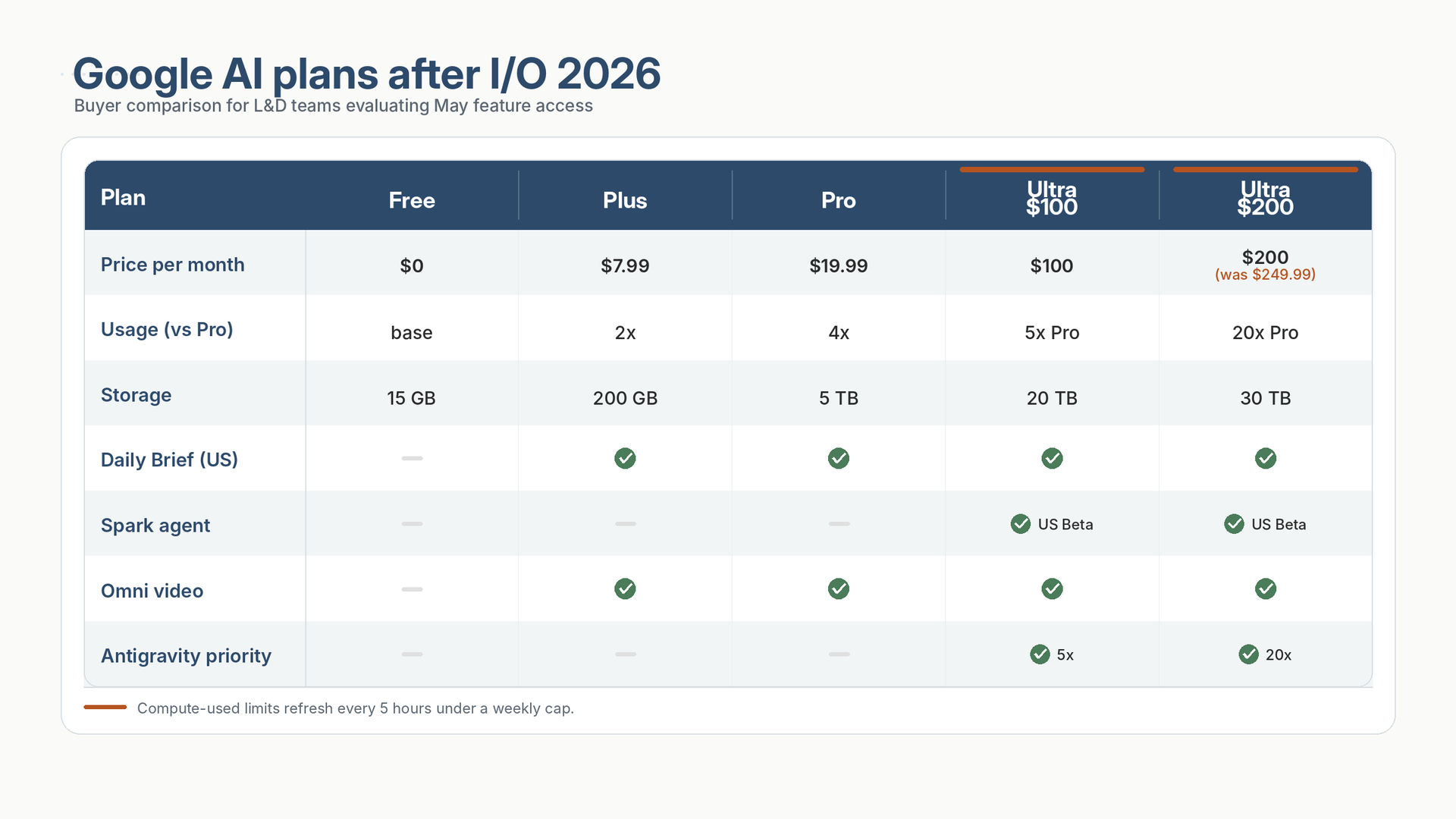
How you use it: Flag it with finance before anyone starts using Spark or Omni at scale, because background agents and video generation consume far more compute than chat. Flat prompt limits were predictable; compute-used is not. Budget AI tools the way infrastructure gets budgeted, usage-based rather than seat-based. And if anyone in the org is paying the old $249.99, the $50 price cut is free money sitting in the renewal.
8. App Redesign + Desktop Notes
What came out: A full visual redesign in Google’s Neural Expressive design language rolled out globally on May 19: richer responses with interactive timelines, narrated videos, and dynamic graphics alongside text, plus a re-engineered Gemini Live microphone that stops cutting people off mid-thought. One correction worth making if you read our earlier coverage: the macOS desktop app launched April 15, not at I/O. What I/O added for Mac users is Spark on desktop and new voice features coming this summer.
How you use it: The multimodal response format is the quiet win for rapid prototyping: ask Gemini to explain a complex process, and the interactive timeline that comes back is a draft learning asset, not just an outline.
💡 What This All Means
Google’s May was the most substantive single-month update any of the four platforms has shipped this year. The architecture question, moving Gemini from a chatbot to a layer underneath the tools people already use, got real answers: Daily Brief, Spark, Omni, Antigravity, and 3.5 Flash all point in the same direction.
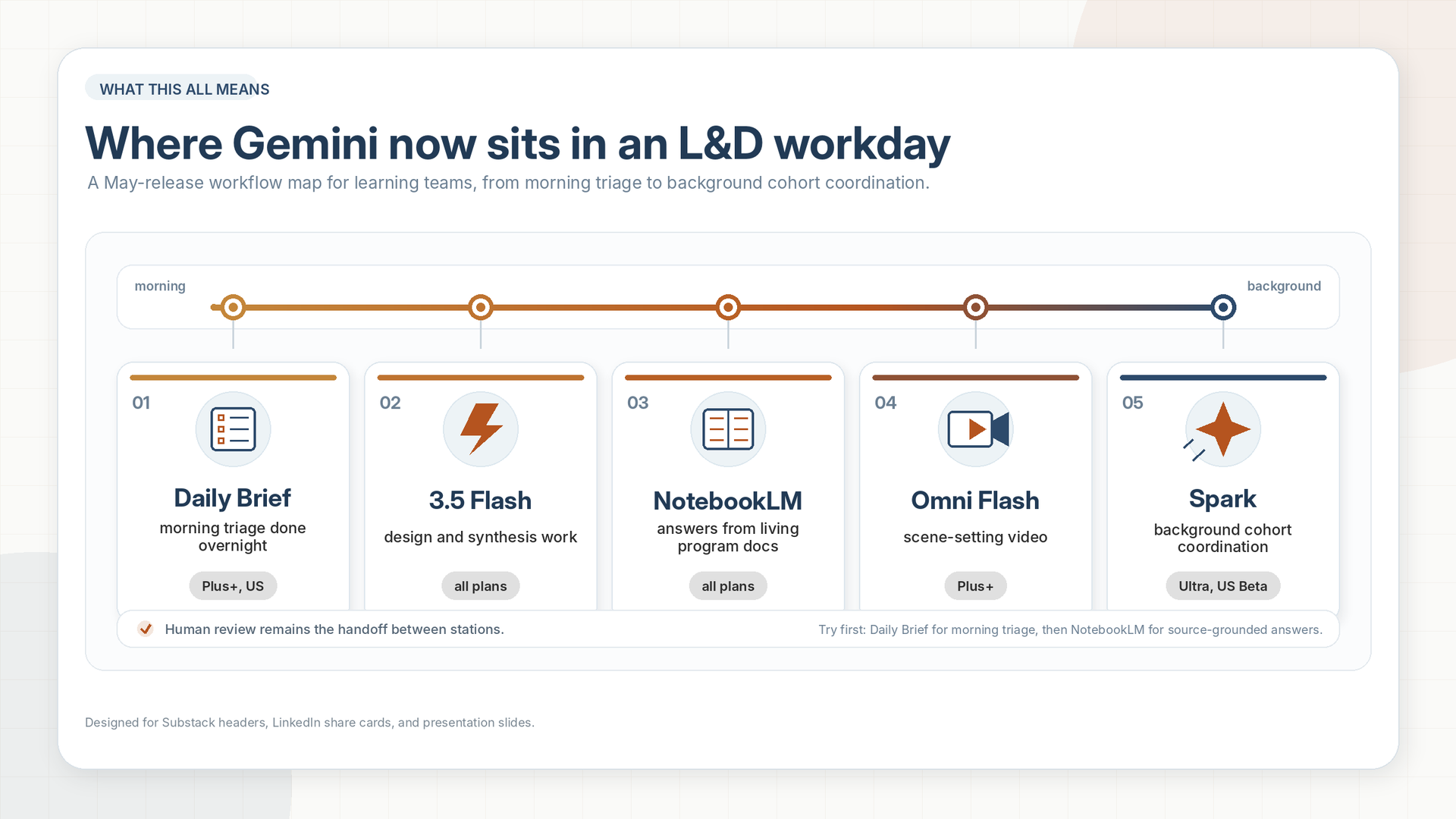
The practical sequence for us: open Daily Brief tomorrow morning if you’re on Plus or higher in the US, run one Omni prompt on a real piece of content before deciding whether it belongs in the workflow, and give Antigravity one honest tool-building task this month. The practice scenario builder above took us under an hour and changed what our next stakeholder conversation would look like.
Spark is the one to watch. When custom sub-agents and broader connections arrive this summer, the background agent that monitors enrollment, chases pre-work, and drafts follow-ups across a multi-week program becomes a real capability shift for L&D operations.
And the pricing shift is the one to flag now. If Spark lands in the org’s hands before finance understands compute-used billing, the first bill will be a conversation. Have that conversation first.
The Google Gemini guide, 27 parts for L&D professionals, including the full NotebookLM workflow, is at learningupgraded.com/resources. Free download. I’m working on updating it with 3.5 Flash and Spark workflows.
—Eian